

November 24, 2025
Internal Linking Best Practices for SEO: The Complete Guide

This guide explains internal linking in plain language, shows how it behaves in Webflow, and then walks through how to use LinkerFlow.io.
Internal links are the invisible structure that holds a Webflow site together. They shape how users move, how Google crawls, and which pages actually rank and convert. For Webflow site owners, the challenge is not only to “add links” but to do it in a way that is scalable, safe for SEO, and simple to maintain.
This guide explains internal linking in plain language, shows how it behaves in Webflow, and then walks through how to use LinkerFlow.io to handle the heavy lifting without losing control.
An internal link is a standard HTML link that points from one page of your site to another page on the same domain (or
subdomain). In code, it is simply an <a> tag with an href that resolves to a real URL, like:
<a href="/blog/internal-linking-best-practices">Internal linking best practices</a>
Google treats a link as a link only if it is a proper <a> element with an href attribute. Script-based “links” like
onclick="goto('/page')" or decorative spans that look clickable are not reliable signals for crawling or ranking.
In practice, on a Webflow site you will see internal links in:
For SEO and UX, contextual links inside content are usually the most powerful, because they connect topics and guide users at the exact moment they need another resource.
Internal links matter for two audiences: people and search engines.
From a user perspective, good internal links:
From a search engine perspective, internal links are fundamental because they:
Well planned internal linking can improve visibility, engagement, and even conversions, especially when links are placed logically and updated over time as your site grows.
This section translates Google’s official link guidelines into Webflow-friendly rules.
Google reliably crawls links only when:
<a> elementshref that resolves to an actual URL (absolute or relative)Examples Google considers crawlable:
<a href="https://example.com">
  <a href="/products/category/shoes"> <a href="./blog/internal-linking"></a></a
></a>
Examples that are discouraged or unreliable:
<a onclick="goto('https://example.com')">
  <a routerLink="/product"> <span href="https://example.com"></span></a
></a>
For a Webflow site, this means:
<a> tags inside Rich Text, which is perfectly compatible with
Google’s expectationsGoogle expects anchor text to tell both users and algorithms what the destination page is about. Good anchor text is:
Avoid vague anchors such as “click here,” “read more,” or “this article.” Prefer anchors like “internal linking strategy for Webflow” or “Webflow SEO checklist.”
For image links, Google uses the alt attribute of the image as the anchor text. That means if you wrap an image in a
link, the alt text becomes critical. Do not stuff the anchor with every possible keyword; Google explicitly warns
against keyword accumulation in anchor text.
Google is clear that internal links are not only for navigation. When used inside content:
A practical rule often used in content SEO is to have roughly 3–5 contextual internal links per 1000 words when it adds genuine value to the reader, rather than forcing links just for SEO.
Google does not provide a hard limit on internal links, but it does recommend avoiding:
If a page looks “spammy” or hard to read for humans because of too many links, it is a signal to scale back.
Webflow gives you excellent control over design, but that flexibility can make internal linking tedious at scale.
Typical internal link locations in Webflow:
Important details for SEO:
When you handle internal links manually in Webflow, you typically:
This is manageable for 10–20 pages. It becomes unrealistic for 200, 500, or 1000+ pages, especially when you want to:
Automation should:
Automation should not:
LinkerFlow is designed with these constraints in mind: it works specifically with Webflow, uses standard <a> tags
inside Rich Text, and keeps all suggestions under your control before they go live.
Setup is simple:
LinkerFlow uses both your site content and GSC data to understand which pages and keywords matter most for your SEO.
This means link suggestions are not random: they are tied to real search queries, impressions, and clicks, not just on-page keywords.
Once connected, LinkerFlow:
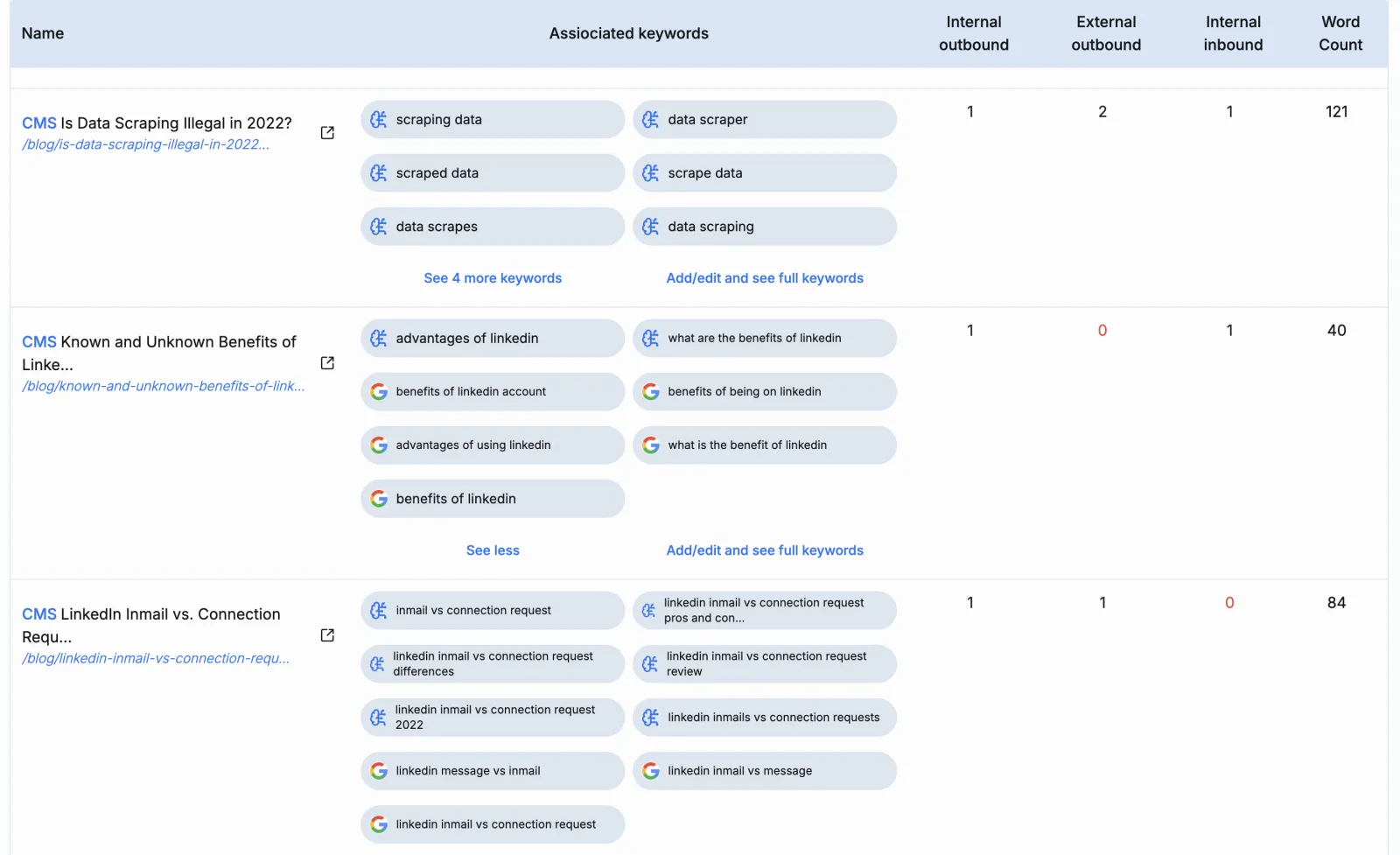
This mapping is what lets the tool suggest:
The goal is the same as in standard internal linking theory: clear content hierarchy, natural placement, and strong relevance.
In the next step, LinkerFlow enters “Autopilot suggestion” mode: the tool proposes internal links, and you decide what to do with each one.
Key points:
<a> tagsDue to Webflow API limitations, LinkerFlow inserts links only in CMS pages, but those links can point to both CMS and static pages.
You also keep a history of published links in the dashboard, and you can still edit or remove any link later directly in Webflow.
Once your initial wave of links is set up, LinkerFlow keeps going:
This combination is particularly useful for Webflow, where internal linking is otherwise scattered across CMS items and static pages.
This section walks through how to actually operate the Link proposals page in LinkerFlow and how it fits with Webflow.
Before you dive into Link proposals:
This preparation makes the suggestions from LinkerFlow much more useful.
In the Link proposals view, each row usually represents a suggested link and contains, at minimum:
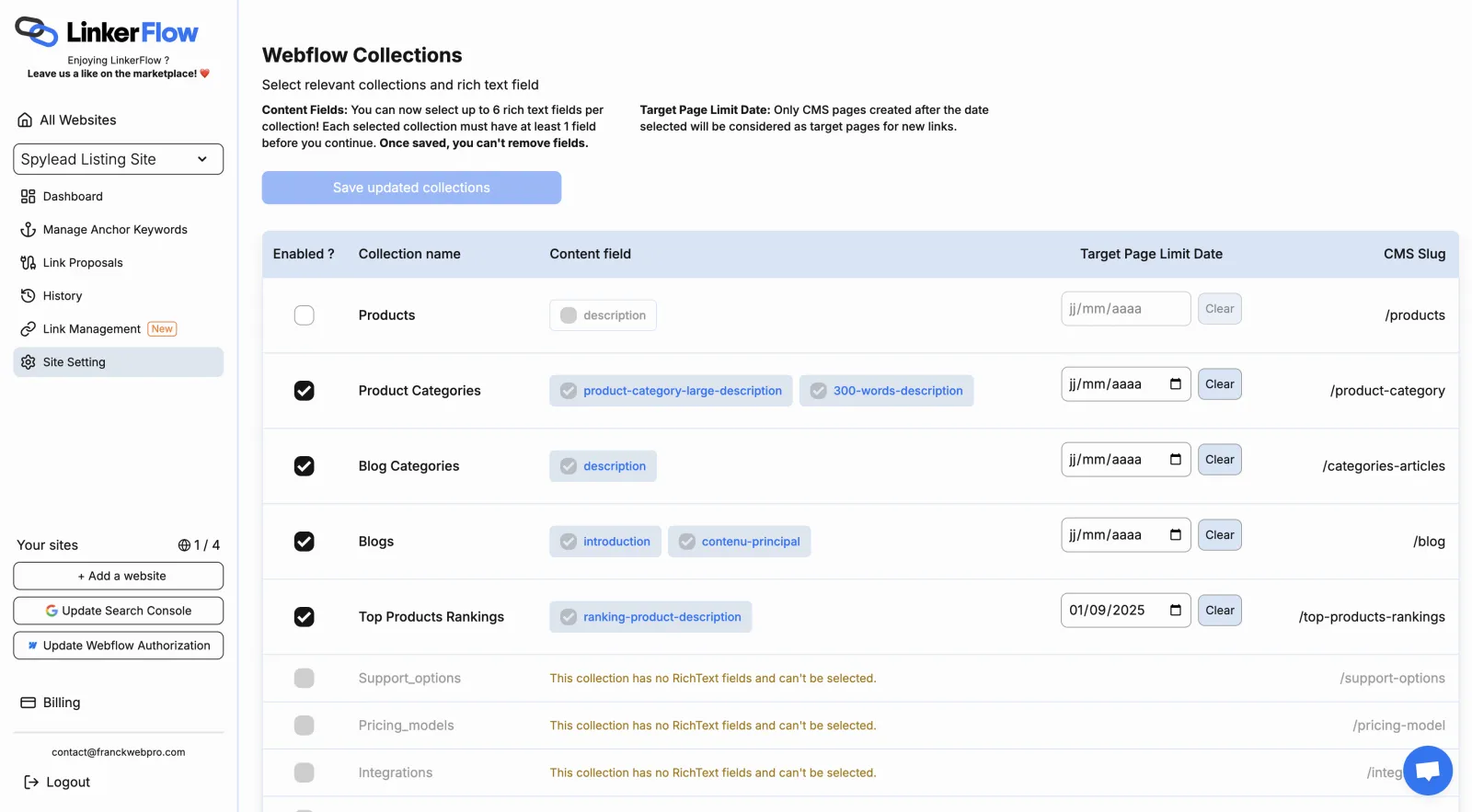
To work efficiently:
Think of this dashboard as your “control room” for site structure.
In practice, you will spend most of your time in three actions: approve, edit, or reject.
Approve a suggestion as-is when:
If you read the sentence out loud and it sounds like something you would have written manually, approval is safe.
Edit the target page of a suggestion when:
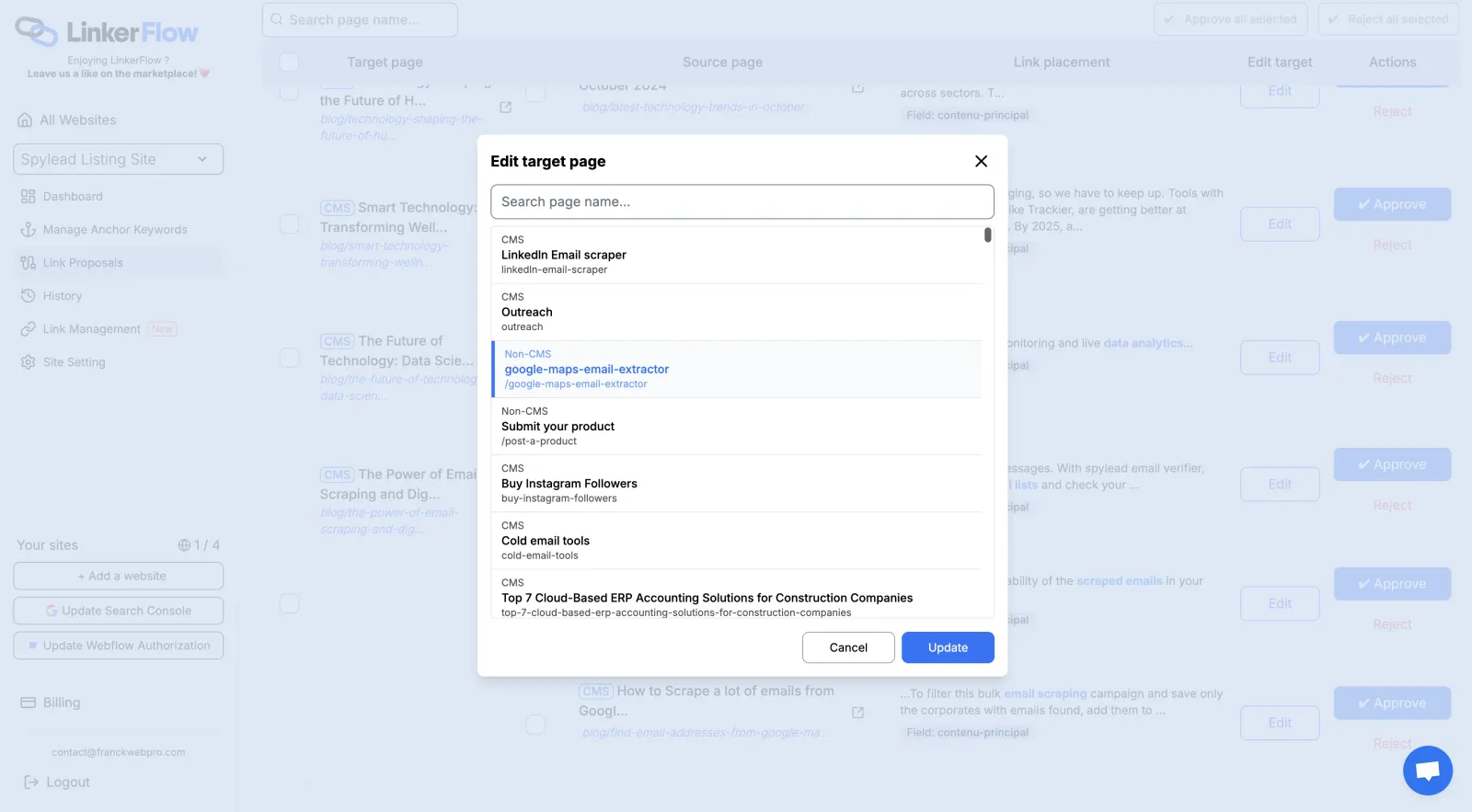
A common pattern is to trim the anchor from a full clause to a focused phrase that still matches Google's recommendations for descriptive, concise anchors.
Reject a suggestion when:
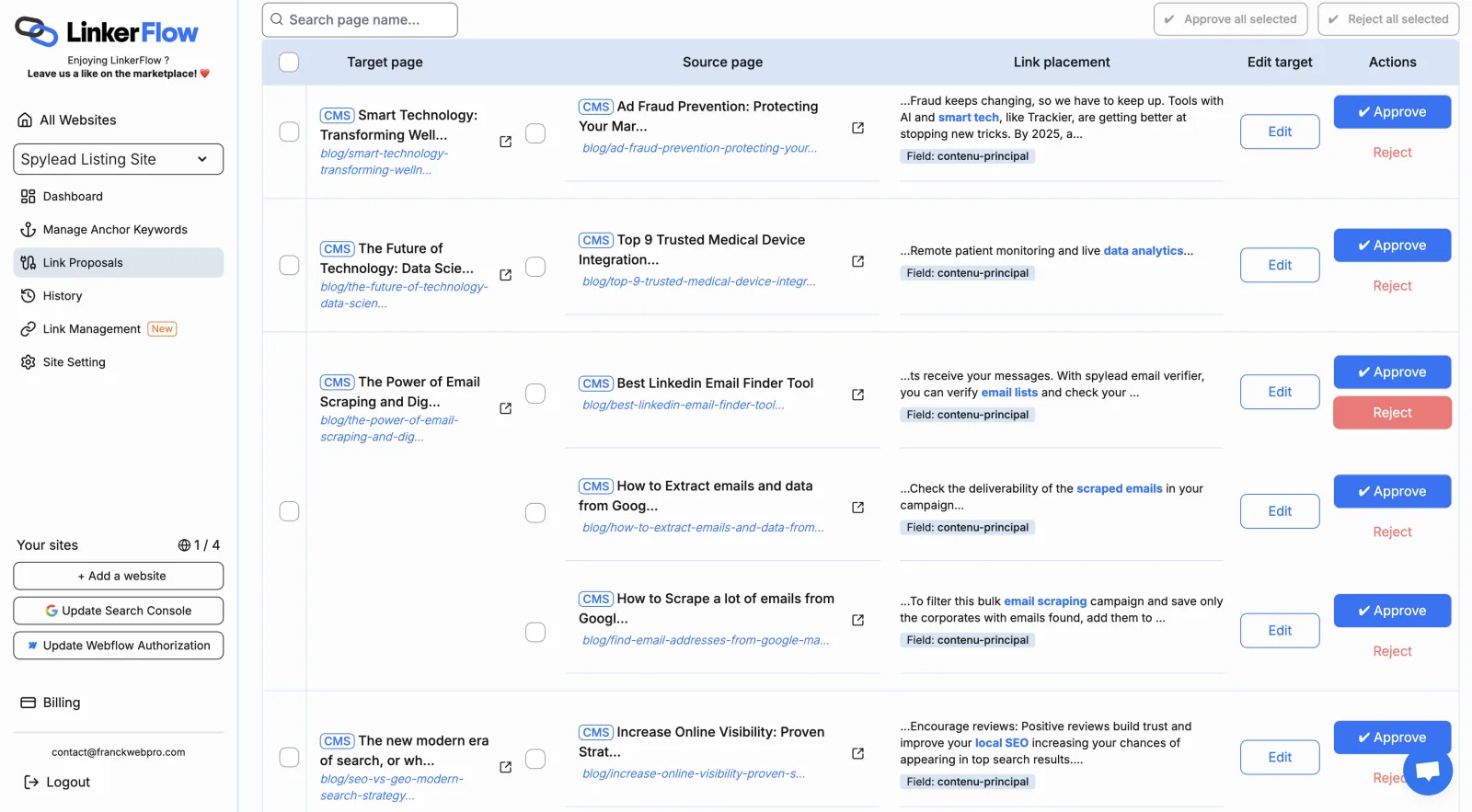
The keyword used in the anchor text won't be reused for futur suggestions.
Once you approve or edit suggestions:
Links added by LinkerFlow behave exactly like any other link on your site, and they remain even if you later cancel the subscription. You can edit or remove them directly inside Webflow at any time.
Internal linking is not a one-off project. To keep it effective over time:
If a page looks cluttered or hard to read because of links, it probably is.
Yes , internal links absolutely help SEO. They make it easier for search engine bots to discover, crawl, and index the pages on your site. They also help distribute link equity (authority) from high-value pages (like your homepage) to other pages, boosting those pages' potential to rank. In addition, internal links act as signals of relevance and importance: a page that receives many contextual links from within your site is considered high value. Finally, they enhance the user experience by guiding visitors to related content, increasing engagement. In short, internal links help SEO by improving crawlability, spreading ranking power, signaling content relationships, and encouraging visitors to stay on your site longer.
Search engine crawlers discover new pages by following internal links. If a page has no internal links pointing to it (an orphaned page), search engines may struggle to find and index it promptly. Clear internal links ensure crawlers can navigate your site easily and that all important pages get indexed.
Internal links help spread ranking authority throughout your site. High-authority pages can pass a portion of their value to deeper pages when you link to them, helping those pages rank better. In essence, internal linking lets you channel the SEO power of your strongest pages to those that need a boost, signaling to Google which pages you consider important.
A smart internal linking strategy reflects your content hierarchy and helps search engines understand relationships between pages. For example, linking your related articles to a comprehensive pillar page (and vice versa) shows which page is the central resource. This interlinking reinforces topical relevance and clarifies which pages are key content.
Internal links improve user experience by guiding visitors to related information, increasing time on site and pages per session. These positive engagement signals align with better search performance.
The question "how many internal links per page" doesn't have a one-size-fits-all answer, but SEO best practices provide clear guidelines you can follow. The ideal number of internal links depends primarily on your content length and the specific purpose of each page.
These ratios ensure you're providing enough navigational pathways without overwhelming your readers or diluting the value of each link. When I'm writing a 1,500-word article, I typically include 3 to 7 contextual internal links that genuinely add value to the reader's experience.
Google's crawlers can technically process hundreds of links on a single page. John Mueller from Google has confirmed that the search engine can handle large numbers of links without issues. That said, you should limit your internal links to around 100 or fewer per page for optimal SEO results.
The internal links per content length ratio becomes especially important when you're working with Webflow sites. If you're wondering "how many internal links per page seo webflow" specifically, the same principles apply. Webflow's clean code structure actually makes your internal linking more effective when you keep the numbers reasonable.
Your homepage presents a special case. You can include more links here (typically 50 to 100) because it serves as your site's central hub. Product category pages, resource hubs, and pillar content pages also warrant higher link counts than standard blog posts.
The key is matching your link quantity to your content's depth and purpose. A 500-word news update needs fewer links than a 4,000-word ultimate guide. You're not just counting links,you're strategically placing them where they provide genuine value to your readers and strengthen your site's SEO architecture.
Content length plays a significant role in determining how many internal links per page SEO best practices allow. A 3,000-word comprehensive guide naturally accommodates 15 to 20 contextual links without overwhelming readers, while a 500-word news update might only support 2 to 3 relevant connections. You need to match your linking density to the depth of information you're providing.
Page purpose dictates entirely different linking strategies across your site. Your homepage serves as a navigation hub and can handle 30 to 50 links directing visitors to key sections, product categories, and important pages. Blog posts typically benefit from 5 to 15 strategic links that enhance the reader's journey and connect related topics. Product pages require a more conservative approach with 3 to 8 links focusing on related products, category pages, and conversion paths.
Site structure determines both the quantity and placement of your internal links. A well-organized hierarchy with clear parent-child relationships helps you identify which pages deserve more link equity and which connections make logical sense for users. Deep sites with multiple levels need strategic linking to ensure important pages receive adequate authority.
Crawl budget becomes critical when you're managing large websites. Search engines allocate limited resources to crawl your site, and excessive linking can waste this valuable budget. When you create pages with 200+ links, you risk diluting link value across too many destinations, reducing the SEO impact each link provides. You want search engines spending time on your valuable content, not getting lost in an overwhelming web of connections.
For a Webflow site, internal links are infrastructure: they define the paths users take, the way Google understands your content, and which pages receive the most authority.
The principles are simple:
The execution is where most teams struggle, especially on Webflow, where the combination of CMS content and custom layouts makes manual linking slow and error-prone.
LinkerFlow solves this by combining GSC data, AI-driven keyword mapping, and a clear approval workflow that inserts compliant, contextual links directly into your Webflow CMS content. You retain editorial judgment, while the tool handles discovery, suggestion, and maintenance.
If you treat the Link proposals dashboard as your ongoing internal linking control panel and follow the practices in this guide, you will steadily improve both the structure and performance of your Webflow site without sacrificing user experience.
Franck is a SaaS and SEO website builder who is into Webflow for more than 3 years. With a strong knowledge in Search Engine Optimization, he loves building websites to make them rank and applications around AI and SEO.
November 24, 2025